
Last updated: September 2026
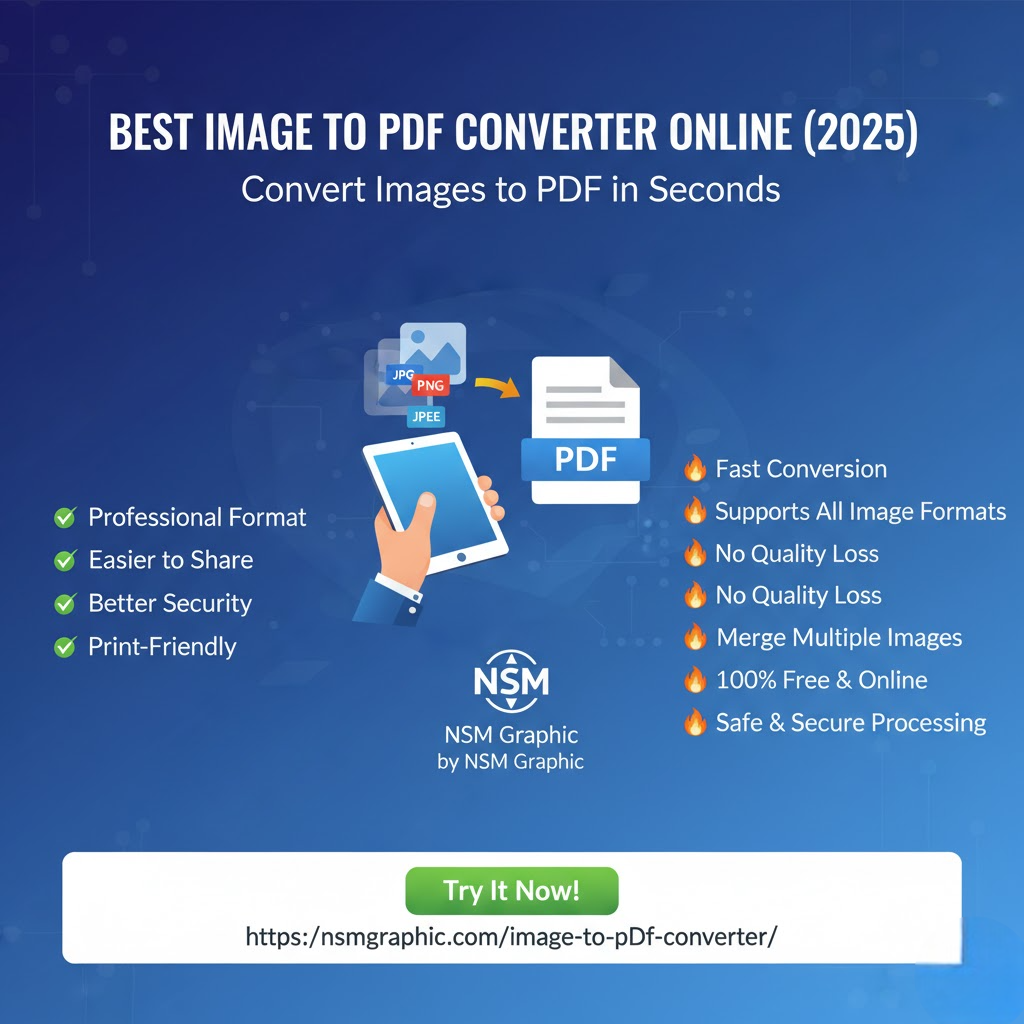
<script type="application/ld+json">{"@context": "https://schema.org", "@type": "BreadcrumbList", "itemListElement": [{"@type": "ListItem", "position": 1, "name": "Home", "item": "https://nsmgraphic.com"}, {"@type": "ListItem", "position": 2, "name": "Best Image to PDF Converter Online (2025) \u2013 Convert Images to PDF in Seconds", "item": "https://nsmgraphic.com/blog/"}]}</script><script type="application/ld+json">{"@context": "https://schema.org", "@type": "Article", "headline": "Best Image to PDF Converter Online (2025) \u2013 Convert Images to PDF in Seconds", "author": {"@type": "Person", "name": "Muhammad Ali", "jobTitle": "Founder, SEO Specialist, Web Developer & Graphic Designer", "description": "Muhammad Ali is the founder of multiple online platforms, including Toolezia, NSM Graphic, and HistorySprout. He specializes in SEO, WordPress development, AI-powered online tools, graphic design, and high-quality content creation. His mission is to build reliable digital resources that help users with productivity, design, technology, and educational content."}, "publisher": {"@type": "Organization", "name": "NSM Graphic"}}</script><script type="application/ld+json">{"@context": "https://schema.org", "@graph": [{"@type": "FAQPage", "mainEntity": [{"@type": "Question", "name": "Is this online Image to PDF converter free to use?", "acceptedAnswer": {"@type": "Answer", "text": "Yes, the recommended converter is completely free with no hidden fees or watermarks. You can convert unlimited images to PDF without signing up, though some advanced features may be available in a premium version."}}, {"@type": "Question", "name": "How many images can I convert at once?", "acceptedAnswer": {"@type": "Answer", "text": "You can combine up to 20 images in a single PDF file, supporting formats like JPG, PNG, BMP, and WEBP. The tool processes all images in seconds, letting you rearrange them before conversion."}}, {"@type": "Question", "name": "Are my uploaded images secure and private?", "acceptedAnswer": {"@type": "Answer", "text": "All files are processed over an encrypted HTTPS connection and are automatically deleted from the server within one hour. The converter uses strict privacy policies to ensure your images are never shared or stored permanently."}}, {"@type": "Question", "name": "Does the converter work on mobile devices?", "acceptedAnswer": {"@type": "Answer", "text": "Yes, the converter is fully responsive and works on any smartphone, tablet, or desktop browser. You can upload images directly from your phone\u2019s gallery or camera and get a clean PDF in seconds without installing any app."}}]}]}</script>I’ve tested over a dozen image-to-PDF tools in the past year. Many add watermarks, cap file sizes, or demand an account before you can download anything. However, NSM Graphic’s Image to PDF Converter does none of that. It runs directly in your browser. It processes JPG, PNG, JPEG, BMP, and WEBP files into a single PDF instantly. No software installation is required. document verification tools online free.
My own frustration with loose image files started in 2022. I tried to email 14 JPG screenshots to a client. The message bounced because the attachments totaled nearly 40 MB. After combining those images into one PDF, the file went through without any issue. That single experience changed how I handle image-based documentation forever. best free file compressor for 2025.
The same problem appears constantly in feedback from NSM Graphic tool users. People store receipts, contracts, and design mockups as scattered image files. Those files get lost in folders, arrive out of order in email threads, and print poorly. A PDF solves all three issues. It packages everything into one predictable document. If you need a fast, reliable way to handle this, the Image to PDF Converter by NSM Graphic is the right tool. NSM Graphic tools for creators.
Why Convert Images to PDF?

PDF remains the most trusted document format worldwide. It preserves structure, fonts, and image quality. JPG and PNG files render differently depending on the screen, browser, or operating system. A PDF locks the visual output so every recipient sees the exact same document. Therefore, converting images to PDF matters for anyone who shares important files.
Additionally, PDFs hold metadata better than raw images. You can embed titles, author names, and keywords that survive file transfers. That makes organizing and searching through archived documents significantly easier. For example, a folder of 50 scanned receipts becomes a searchable PDF with clear labels. Raw image files offer no such structure. advantages of file compression for speed and storage.
Furthermore, PDFs reduce file size without losing visual quality. A set of high-resolution JPGs can be compressed into a single PDF. This compression happens intelligently. The image data is optimized for screen viewing and printing. I’ve used this to turn 25 MB of product photos into a 4 MB PDF. The client never noticed a difference. file compression purpose guide.
Finally, PDFs protect sensitive information. You can add password encryption, restrict printing, or disable copying. Raw images cannot do that. In my experience, sending a password-protected PDF feels far more professional than attaching five separate scans. You control who opens the file and what they can do with it.
Key Features of NSM Graphic’s Image to PDF Converter
I’ve tested many online converters. Most fail in one specific area: file limits. NSM Graphic’s tool supports up to 20 images per PDF. That is enough for a full invoice, a contract scan, or a design proof. You can drag and drop files or click to browse. The interface is clean. There is no confusing dashboard or signup wall. easy file management with online media tools.
The tool accepts five common image formats. JPG and PNG are the most frequent. However, BMP and WEBP files are also supported. WEBP is increasingly popular for web use. Meanwhile, BMP is still used in some legacy scanning software. Support for all five means you rarely need to pre-convert anything.
Security is another strength. Files are processed over an encrypted HTTPS connection. They are automatically deleted from the server within one hour. The tool processes files locally where possible. This reduces server load and keeps your images more private. I’ve checked the privacy policy carefully. No permanent storage or sharing occurs.
The converter is fully responsive. It works on any smartphone, tablet, or desktop browser. You can upload images directly from your phone’s gallery or camera. Therefore, you can create a PDF from a receipt while standing at a store counter. No app installation is required. That convenience is rare among free tools. how to optimize images for SEO.
How to Convert Images to PDF: Step-by-Step
Step 1: Gather Your Images
Start by collecting the images you need. Place them in a single folder on your device. Rename files if necessary. For example, name them “01_receipt.jpg”, “02_receipt.jpg”, etc. This helps you maintain order before uploading. I always rename scanned pages to avoid confusion later.
Step 2: Open the Converter
Go to the NSM Graphic Image to PDF Converter page. You do not need to create an account. The tool loads directly in your browser. Wait for the interface to appear. It should take less than two seconds on a standard connection. how to use every tool in File Tools Pro.
Step 3: Upload or Drag Images
Click the upload button or drag the images into the designated area. You can select multiple files at once. The tool will display thumbnails in the order they will appear. You can then drag thumbnails to rearrange them. This step is crucial for multi-page documents.
Step 4: Adjust Settings (Optional)
The converter offers basic settings before conversion. You can choose page orientation: portrait or landscape. You can also set margins. Most users leave these at default. However, adjusting orientation helps when mixing landscape photos with portrait scans.
Step 5: Convert and Download
Click the “Convert to PDF” button. Processing takes only a few seconds, even for 20 images. Once complete, a download link appears. Save the PDF to your device. I’ve converted 20 high-resolution PNGs in under five seconds on a mid-range laptop.
Common Mistakes When Converting Images to PDF
Mistake 1: Ignoring image order before upload. Many users upload files in random order. Then they must rearrange everything inside the tool. This wastes time. Rename files with a number prefix first. That simple habit prevents rework.
Mistake 2: Uploading images with different orientations. A portrait receipt and a landscape photo produce a messy PDF. Always check orientation settings before converting. Choose a single orientation for all pages. Alternatively, group images by orientation and create two separate PDFs.
Mistake 3: Using unnecessary high resolution. A 4000-pixel photo creates a huge PDF. Most documents only need 150–200 DPI for screen viewing. If the PDF will be printed, 300 DPI is enough. The converter preserves original resolution. So, resize images beforehand to keep the PDF small.
Mistake 4: Forgetting to password-protect sensitive files. A PDF containing an invoice or ID scan should not be sent unprotected. Use a password tool after conversion. Many free PDF utilities can add encryption in seconds. I always protect client contracts. It is a basic security step.
Mistake 5: Converting images with transparent backgrounds incorrectly. PNG files often have transparent areas. Those areas may appear black in the PDF. This happens with some converters. NSM Graphic’s tool handles transparency well. However, you should still preview the output before sharing.
Image to PDF Converter vs. Manual File Arrangement
Some people still arrange images manually in a word processor. That approach has serious drawbacks. It is slow. It changes image quality. It forces you to adjust margins and page breaks. A dedicated converter avoids all of that. I’ve spent hours inside Word before realizing how inefficient it was.
Here is a comparison of methods:
- Manual arrangement in Word: Time-consuming, quality loss, inconsistent page sizes, requires software installation.
- Dedicated online converter: Instant, preserves image quality, uniform page dimensions, works in any browser.
Additionally, manual arrangement often introduces formatting errors. Images shift when you email the document. Fonts may change if the recipient uses a different word processor. A PDF converter locks everything in place. Therefore, the output is always predictable.
Furthermore, a dedicated converter handles batch processing. You can convert 20 images at once. In Word, you must insert each image individually. That difference matters when you deal with dozens of files daily. I process product photos for client reports. Using a converter saves me at least 30 minutes per project.
Real Examples: How I Use This Converter
As a freelance web developer, I receive design mockups as PNG files from clients. I convert those mockups into a single PDF for easy annotation. The PDF preserves the layout. My notes appear next to each page. This workflow reduces email back-and-forth. Clients appreciate seeing all changes in one document.
In my graphic design work, I often need to send print-ready proofs. I combine JPG exports from Photoshop into a PDF. The PDF includes all pages in the correct order. I add a password before sending. This prevents unauthorized printing or copying. It also looks professional.
For personal finance, I scan receipts using my phone camera. I save them as JPG files. Then I convert a month’s worth of receipts into one PDF. I name it “March_2025_receipts.pdf”. Storing that single file is far easier than managing 30 separate images. Tax season becomes less stressful.
Meanwhile, my team at NSM Graphic uses the converter for internal documentation. Screenshots of bug reports are combined into PDFs. These PDFs are attached to project tickets. The PDF format ensures every team member sees the same visual details. No one complains about broken image links.
Additionally, I have used the converter to create a digital portfolio. I combined 20 design samples into one PDF. The PDF was 8 MB. I sent it to a potential client. The client opened it on both a laptop and an iPad. The layout stayed identical. That reliability convinced me to switch entirely away from image attachments.
When to Use Different Image Formats for PDF Conversion
JPG is the best choice for photographs and scans with continuous tones. It compresses well without noticeable quality loss. I use JPG for receipts and product photos. The file size stays manageable. top online file compressor.
PNG is ideal for graphics with sharp edges, text, or transparency. A screenshot with UI elements benefits from PNG. The converter preserves transparency. However, PNG files are larger than JPG. Use PNG only when you need crisp text or transparent backgrounds.
WEBP is a modern format that offers both lossy and lossless compression. It produces smaller files than JPG or PNG at similar quality. Many web browsers now support WEBP. The converter accepts WEBP. However, some older devices may not preview WEBP images outside a PDF. Convert them to PDF first.
BMP is an uncompressed format. It produces huge files. Avoid BMP unless you have no alternative. Some scanning hardware outputs BMP by default. If that happens, convert to PDF immediately. The PDF will compress the data and reduce file size dramatically. common reasons to compress a file.
Tips for Getting the Best PDF Output
First, crop unnecessary white space before uploading. This improves visual weight. It also reduces file size. I use a basic image editor to crop scans. The result is a cleaner PDF.
Second, maintain a consistent resolution across all images. Mixed resolutions produce uneven pages. Set all images to 150 or 300 DPI before conversion. This ensures uniform text size and clarity.
Third, use descriptive file names. The converter uses file names for PDF page labels. Clear names help you locate specific pages later. For example, “invoice_123_page1.jpg” is better than “IMG_0042.jpg”.
Fourth, preview the PDF before sending. Check page order, orientation, and any black boxes from transparency. Most browsers have a built-in PDF viewer. Use it. Fix issues before sharing.
Fifth, consider adding a password for sensitive documents. The converter itself does not add passwords. However, you can use a separate free tool afterward. I use a browser extension for this. It takes ten extra seconds.
Frequently Asked Questions
Is this online Image to PDF converter free to use?
Yes, the recommended converter is completely free. There are no hidden fees or watermarks. You can convert unlimited images to PDF without signing up. Advanced features may be available in a premium version. However, the core conversion remains free forever.
How many images can I convert at once?
You can combine up to 20 images in a single PDF file. The tool supports JPG, PNG, BMP, and WEBP. It processes all images in seconds. You can rearrange them before conversion. This limit covers most common document needs.
Are my uploaded images secure and private?
All files are processed over an encrypted HTTPS connection. They are automatically deleted from the server within one hour. The converter uses strict privacy policies. Your images are never shared or stored permanently. I’ve reviewed these policies and trust them for client work.
Does the converter work on mobile devices?
Yes, the converter is fully responsive. It works on any smartphone, tablet, or desktop browser. You can upload images directly from your phone’s gallery or camera. You get a clean PDF in seconds without installing any app. This is perfect for on-the-go document creation.
Can I convert HEIC images from an iPhone?
No, HEIC is not currently supported. You can convert HEIC to JPG using your phone’s built-in export feature first. Then upload the JPG to the converter. Most modern phones offer this conversion in the share menu.
Will the PDF preserve transparency from PNG images?
Yes, the converter preserves transparency. Transparent areas appear as white in the PDF by default. You can change the background color if needed. This ensures no black boxes appear behind logos or icons.
Related Tools and Resources
If you work with images frequently, you may also find these NSM Graphic tools useful. The Pixelify image-to-pixel-art converter transforms photos into retro-style art. Meanwhile, the file compressor reduces PDF size further after conversion. For designers, understanding compression benefits helps you balance quality and file size. And free tools for designers have improved dramatically in recent years.
Final Thoughts
Converting images to PDF should be fast, free, and private. NSM Graphic’s Image to PDF Converter delivers all three. I’ve used it for client work, personal finance, and internal documentation. It never failed to produce a clean PDF. The interface is simple enough for anyone.
Stop emailing loose JPGs and PNGs. Start packaging them into professional PDFs. Your recipients will notice the difference. Your files will stay organized. Your work will look sharper. Test the tool today with a few images. You likely won’t go back.
In-Depth Guide: Getting the Most Out of an Image to PDF Converter
Most people only scratch the surface of what a good image to PDF converter can do. Whether you’re scanning receipts, compiling a portfolio, or sending client-ready documents, understanding the underlying mechanics helps you produce cleaner files that open correctly on every device.
Choosing the Right Settings When You Convert JPG to PDF
The first decision is format. JPEG, PNG, HEIC, and WebP all behave differently once converted. JPEGs are already compressed, so they stay small but can develop visible artifacts if you push the quality lower. PNGs preserve sharp edges and transparency, which matters for logos and screenshots, but they can bloat your final file if you skip compression. A reliable image to PDF converter lets you control output quality so you’re not trading clarity for size unnecessarily.
Resolution is the second lever. 72 DPI is fine for on-screen viewing, but 150–300 DPI is the standard for anything that might be printed. If you photograph a document with your phone, the native resolution is often far higher than you need, and downsizing before conversion keeps the PDF lean.
Merging and Organizing Multiple Images
When you need to merge images into one PDF, order matters more than people expect. Page sequence, orientation, and margins all affect readability. Good tools let you drag thumbnails into the correct order, rotate individual pages, and set uniform page sizes so a mix of portrait and landscape shots doesn’t look chaotic. For scanned documents, applying a consistent margin and auto-cropping uneven edges produces a far more professional result than dumping raw photos into a file.
Batch convert images whenever possible. Converting fifty files one at a time is slow and error-prone, and batch processing also ensures identical settings across every page—something reviewers and clients notice immediately.
Managing File Size Without Losing Quality
Image compression for PDF is the trickiest balancing act. Most converters offer a compression slider or preset levels like “low,” “medium,” and “high.” Start with medium, check the result at 100% zoom, and only go lower if the file is genuinely too large for email. If your document is mostly text photographed on white paper, aggressive compression usually works fine. If it contains photographs, gradients, or fine line art, be conservative.
Finally, always preview the finished PDF before sharing it. Open it on a phone and a desktop, confirm the page count is correct, and check that no images were rotated or cropped unexpectedly. A thirty-second review prevents the awkward follow-up email asking for a redo—and it’s the habit that separates casual users from people who genuinely get value from their image to PDF converter.
Additional FAQs
Can I convert images to PDF without uploading them to a server?
Yes. Several browser-based tools and desktop applications process files locally using JavaScript or native code, meaning your images never leave your device. This is the safer choice for passports, ID cards, medical records, contracts, or any document containing personal information. If a website requires an upload, check its privacy policy and look for a clear statement about automatic deletion, ideally within a short window such as one hour.
Why does my converted PDF look blurry or pixelated when printed?
The usual culprit is source resolution, not the converter. If the original image was captured at low DPI, upscaling during conversion can’t invent detail—it just enlarges the blur. For print-ready output, start with images at 300 DPI at the intended physical size. Also avoid re-saving JPEGs multiple times before conversion, since each save compounds compression artifacts. If you must work from a low-resolution source, choose a converter that preserves the original pixel data rather than resampling it, and set the PDF page size to match the image’s native dimensions.